Visual Studio lets you unpin a tool window. Solution Explorer, Output or Test Explorer then collapses to a tab on the edge of the window and slides back out when you need it, so the tools stay close and the code gets the full width.
VS Code has nothing like it. The Side Bar, the Panel and the Secondary Side Bar are either open or closed, and the only way to manage them is by hand with Ctrl+B, Ctrl+J and Ctrl+Alt+B. I wanted the Visual Studio behaviour back, so I wrote Pin & Hide.
What it does
Every part of the workbench starts pinned, so installing the extension changes nothing until you unpin something. An unpinned part closes once you go back to work in the editor. You open it again the usual way, from the Activity Bar or with the keyboard shortcut, and it stays open until your next click, keystroke or scroll in the editor.
It handles all three parts of the workbench: the Primary Side Bar (Explorer, Search, Source Control), the Panel (Terminal, Problems, Output, Debug Console) and the Secondary Side Bar, where views such as Copilot Chat or Claude Code are often docked.
Pinning and unpinning
Each view has a pin button in its title bar, in the same place Visual Studio puts one on a tool window. A filled pin means the part is pinned and an outline pin means it auto-hides. Clicking the button toggles it.
The status bar has a single pin icon as well. It shows a filled pin when everything is pinned, or an outline pin with a count when some parts auto-hide.
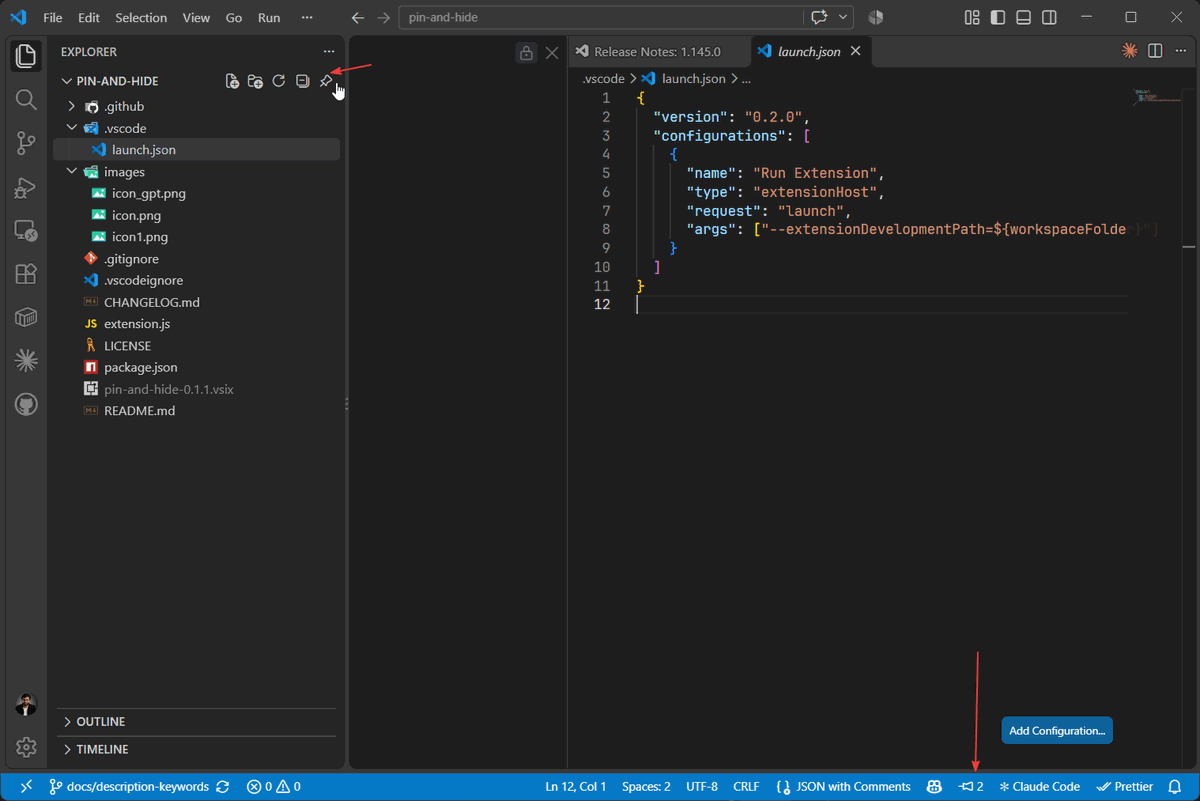
Clicking that icon opens a multi-select list. Tick the parts you want pinned and leave the rest unticked:
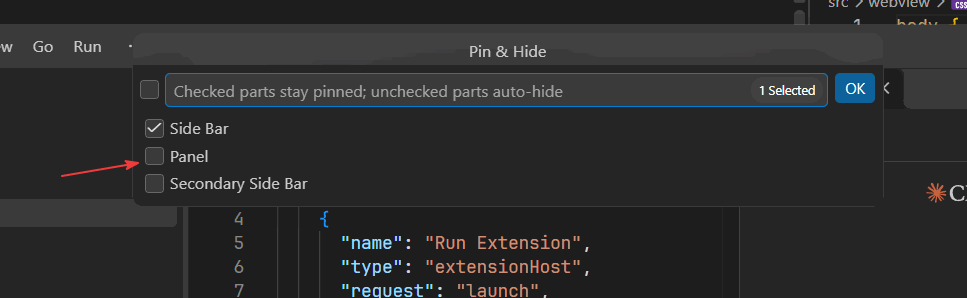
The status bar route also works while a part is hidden, when there is no title bar to click. From the Command Palette, Pin & Hide: Choose Pinned Parts… opens the same list and Pin & Hide: Toggle Pin: … flips one part directly.
Pin state is kept in the extension’s global state, so the layout survives a restart.
How it decides when to hide
Visual Studio hides a tool window when the mouse leaves it. A VS Code extension cannot do that, because the API does not report the cursor position or which part has keyboard focus. Pin & Hide treats editor activity as the signal instead:
- A selection change made with the mouse or keyboard counts as activity. Selection changes made by commands, such as opening a file, Go to Definition or clicking a search result, do not. The API reports which kind of change it was.
- A scroll in the editor counts, except within 500 ms of a programmatic selection change or an editor switch. Without that window, clicking a search result would scroll the editor and close the Search view you were still using.
- Switching to the terminal hides the unpinned side bars and leaves the Panel open, since the terminal lives in it.
- If the VS Code window loses focus, a pending hide is cancelled.
The hide runs after autoHide.delay milliseconds, 300 by default. The timer starts on the first interaction and later interactions do not restart it. If every keystroke reset it, steady typing would keep the side bar open until you paused.
| |
When the timer fires, the pin state is checked again, so a part you pin during the delay stays open. The closing itself uses the built-in workbench.action.closeSidebar, closePanel and closeAuxiliaryBar commands. The whole extension is one JavaScript file with no dependencies.
The title-bar buttons are ordinary view/title menu contributions. The extension sets a context key for each part (autoHide.sidebarPinned and so on), and package.json shows either the pin or the unpin command depending on that key, so there is no webview or custom UI involved.
Limitations
The extension API limits what Pin & Hide can do:
- Parts close instantly when the delay ends. Extensions have no way to animate a part sliding out.
- Moving the mouse out of the Side Bar does nothing on its own. The part hides when you click, type or scroll in the editor.
- A click that does not move the caret, for example on the exact spot where it already is, produces no selection event and cannot trigger a hide.
Install
Search for Pin & Hide in the Extensions view (Ctrl+Shift+X), or run:
| |
Then unpin the parts you only open now and then.
The source is MIT-licensed. Releases go through a GitHub Actions workflow that bumps the version, tags the commit, publishes to the Marketplace and creates a GitHub Release.
Get it from the Visual Studio Marketplace or browse the source on GitHub.