“Which connection string is this app using?” is a question I keep asking while looking at five files that each set it differently.
An ASP.NET Core service reads appsettings.json, then appsettings.Development.json, then user secrets, then environment variables (including the ones the launch profile sets), then command-line arguments. A Python service does something similar with .env, .env.local, per-environment files and the OS environment. The value your code finally sees comes out of a merge that is never shown anywhere. To find it, you usually set a breakpoint and inspect IConfiguration, or print os.environ and run the app.
I wanted the answer without running anything, so I built Effective Config Viewer. The VS Code extension reproduces the merge and shows the result in one panel.
What it shows
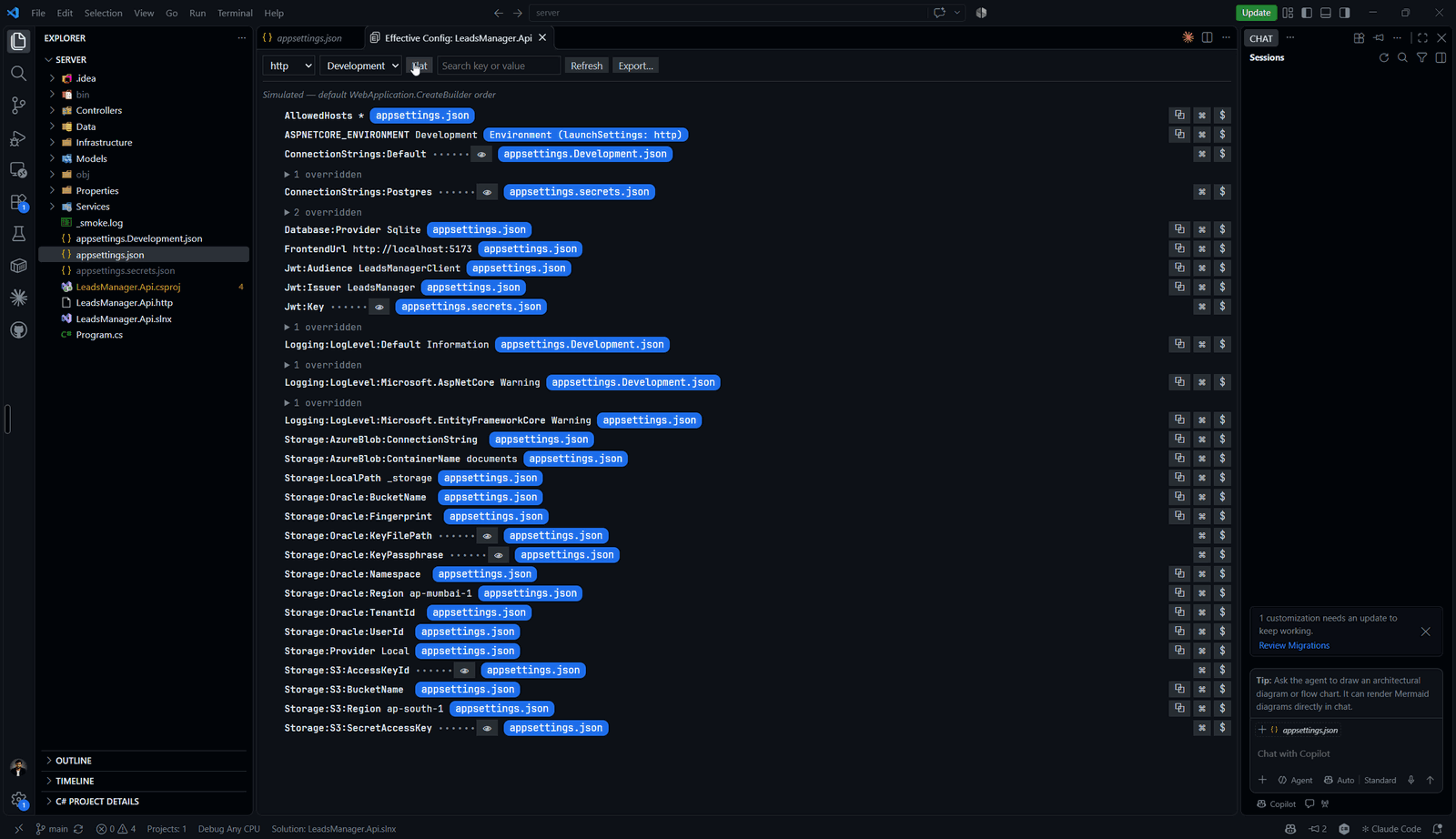
You pick a project, a launch profile and an environment, and the panel shows the merged configuration for that combination. Each value lists the layer that won and the layers it overrode.
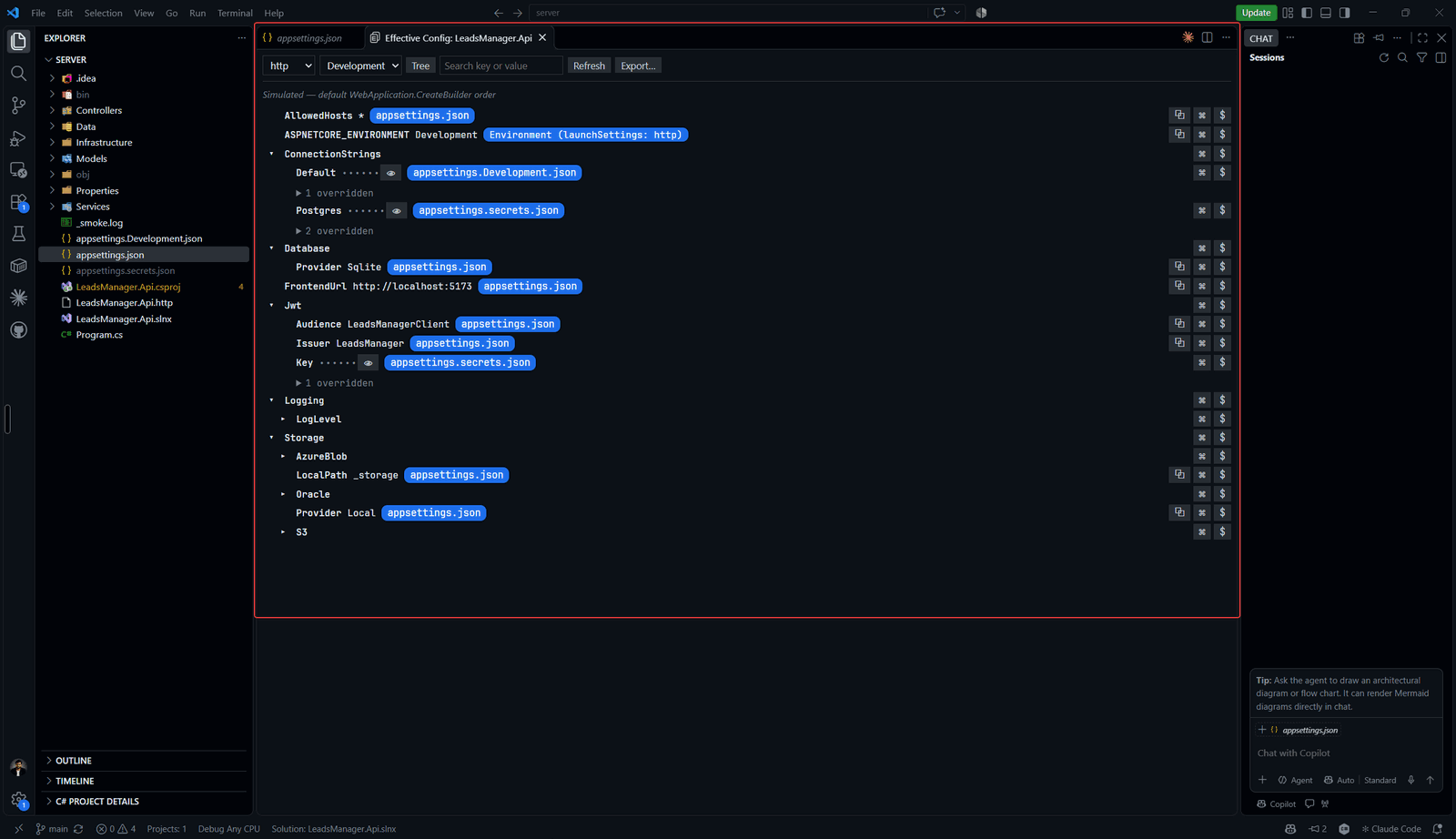
The tree view follows the shape of your configuration sections. The flat view lists every key as Section:Key = value, which is the form you need when writing an environment variable override or searching for a key:
Clicking a source opens the file at the line that set the value, so when a value looks wrong you can go straight to the file responsible for it.
The panel can also:
- search by key or value
- copy a value, a key path, or the environment variable name for a key (
ConnectionStrings__DefaultforConnectionStrings:Default) - export the merged result as nested JSON or flat
KEY=value - refresh when a source file changes, keeping the nodes you expanded and the secrets you revealed
The extension reads the files and does the merge itself. It never builds or runs your app, so it also works on a project that does not compile yet.
The .NET merge order
A .NET project is a .csproj with appsettings.json next to it. The extension follows the default order of WebApplication.CreateBuilder, lowest priority first:
appsettings.jsonappsettings.{Env}.jsonappsettings.secrets.json, when present- User Secrets, in Development only, found through the project’s
UserSecretsId - Environment variables: the OS environment (filtered), then the launch profile’s
- Command-line arguments from the profile’s
commandLineArgs
Launch profiles come from Properties/launchSettings.json. Choosing a profile preselects the environment named by its ASPNETCORE_ENVIRONMENT or DOTNET_ENVIRONMENT, so picking the default https profile usually selects Development as well.
If your project loads an extra file such as appsettings.Local.json, add it to effectiveConfig.dotnet.jsonLayers.
The Python merge order
Python has no single configuration system, so the extension follows python-dotenv, the most common one. A Python project is any folder with a .env file and a project marker. The default order, lowest priority first:
.env.env.{env}.env.local.env.{env}.local- OS environment variables, filtered
- The launch profile’s
envFile, then itsenvblock, from.vscode/launch.json
OS variables win over the files by default, matching python-dotenv’s override=False. If your code calls load_dotenv(override=True), set effectiveConfig.python.fileOverridesOs to true and the files move above the OS variables.
The .env parser follows python-dotenv’s rules, including ${VAR} and ${VAR:-default} expansion. Keys are split on __ into a tree, so DATABASE__HOST appears under DATABASE. The delimiter is configurable, and an empty string keeps keys flat. The active environment is read from APP_ENV, ENV, ENVIRONMENT or PYTHON_ENV, in that order.
When a workspace has both kinds of project, they share one project switcher and are tagged [.NET] and [Python].
How the merge engine works
Both ecosystems feed the same engine. Each source becomes a Layer with a list of entries, and mergeLayers folds them in priority order:
| |
Keys are case-insensitive, as in .NET’s IConfiguration. The first layer that defines a key decides the casing shown in the panel, so Logging:LogLevel keeps its casing even when an environment variable overrides it.
The engine keeps every contribution for a key along with the winner. That list is the override chain: it shows, for example, that appsettings.Development.json replaced the base value and an environment variable then replaced that one.
Keys are sorted segment by segment, as .NET does it, so a parent sorts before its children and array indices sort as numbers.
Each language lives in its own folder with a ConfigProvider and an Ecosystem that handles project discovery and the picker tag. Adding another dotenv-style language mostly means extending DotenvProviderBase and registering the new ecosystem.
Keeping secrets secret
A configuration viewer will display connection strings and API keys, so the extension masks them.
A value is masked when it comes from a secret layer (user secrets, appsettings.secrets.json, or any configured layer with secret in its name) or when its key matches a mask pattern. The default patterns are *Password*, *Secret*, *Key*, *TOKEN* and ConnectionStrings:*, and you can change them.
Masked values are never sent to the webview. The panel gets a placeholder, and a real value crosses from the extension host to the webview only when you reveal that one value. The webview is a separate browser context, and keeping secrets out of it until you ask for them limits where they can end up.
Masking follows variable expansion too. If .env contains DATABASE_URL=postgres://app:${DB_PASSWORD}@db/app, the expanded DATABASE_URL stays masked because it was built from a masked key. The engine repeats this check until nothing changes, which covers chains of references. Sensitivity can only be turned on, never off, so a reference cycle still terminates.
Known limitations
The extension reproduces the default merge and cannot see code that changes it:
- .NET: custom configuration providers, Azure Key Vault and Azure App Configuration, reordering in
Program.cs, aUserSecretsIdset inDirectory.Build.props, legacySQLCONNSTR_-style prefixes, and switch mappings. - Python:
.flaskenv, Django settings modules,os.environreads in code, condaenvironment.yml, direnv, Poetry or pipenv auto-loading, and pydantic’ssecrets_dir.
If your app relies on one of these, the panel shows what the files and the environment say, which may differ from what the app ends up with. A project that sticks to the framework defaults gets the same answer from both.
Getting started
Install Effective Config Viewer from the Extensions view (Ctrl+Shift+X), or run:
| |
You can open the panel from the Command Palette with Effective Config: Show Merged Configuration, by right-clicking an appsettings*.json, .csproj, .env or .env.* file in the Explorer, or with the button in the editor title bar while an appsettings*.json or .env* file is open. Then pick the project, launch profile and environment at the top of the panel.
The extension is MIT-licensed. If it merges your project’s configuration differently from how your app does, please open an issue with a minimal example.
Get it from the Visual Studio Marketplace or browse the source on GitHub.