Winget is a versatile package manager introduced by Microsoft to simplify the installation, updating, and removal of software on Windows operating systems. Designed with user-friendly simplicity in mind, Winget allows users to manage applications across different stores and repositories effortlessly. This article explores the various uses of Winget and provides essential commands for effectively using it.
Key Features
- Unified Interface: Winget offers a unified interface for accessing and installing software from multiple sources, including Microsoft Store, GitHub, and more.
- Cross-Platform Support: Unlike previous package managers that were limited to Windows Subsystem for Linux (WSL), Winget can be used directly on Windows without the need for WSL.
- Command-Line Access: Winget is primarily accessed through the command line, making it accessible from any PowerShell or Command Prompt window.
Common Commands
Winget commands are straightforward and easy to remember. Here’s a list of commonly used commands:
- Install an Application
winget install [PackageName]Example:
winget install Notepad++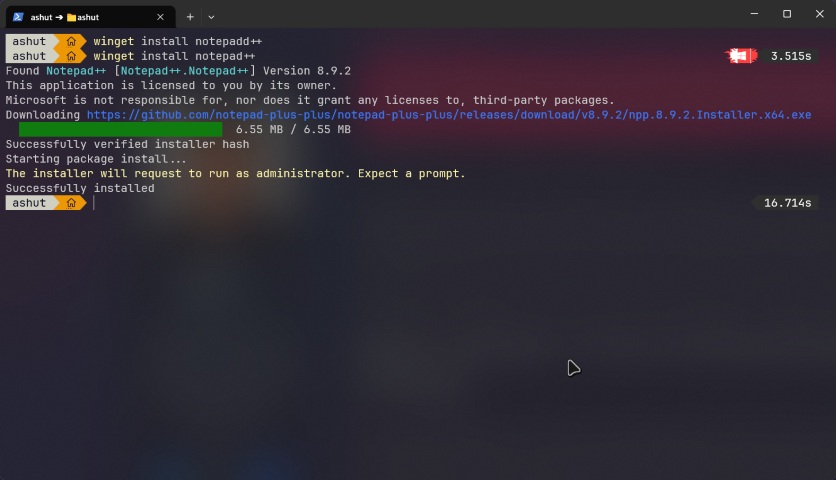
- Search for an Application
winget search [Keyword]Example:
winget search Microsoft Edge- Uninstall an Application
winget uninstall [PackageName]Example:
winget uninstall Notepad++- Show Information about an Application
winget show [PackageName]Example:
winget show Notepad++- Update an Installed Application
winget upgrade [PackageName]Example:
winget upgrade Notepad++- List All Installed Applications
winget list- Show Updates for All Installed Applications
winget upgrade --all- Set Preferences (e.g., source, default version)
winget config set <SettingName> <Value>Example:
winget config set source msstoreAdvanced Features
Winget also offers advanced features such as filtering and sorting results based on various criteria:
- Filter by Source:
winget search [Keyword] --source <SourceName>Example:
winget search Python --source MicrosoftStore- Sort Results:
winget search [Keyword] --sort [Field]Example:
winget search Python --sort PopularityConclusion
Winget is a powerful and user-friendly tool for managing software on Windows. Its simplicity, unified interface, and wide range of commands make it an essential utility for both casual users and power users alike. By mastering these basic and advanced commands, you can streamline your workflow and ensure that your system is always up-to-date with the latest applications.
Further Reading